
Rehearse the screen you plan to share
Your interview setup should feel familiar before anyone joins. A short rehearsal helps you see the same presentation the panel will see.
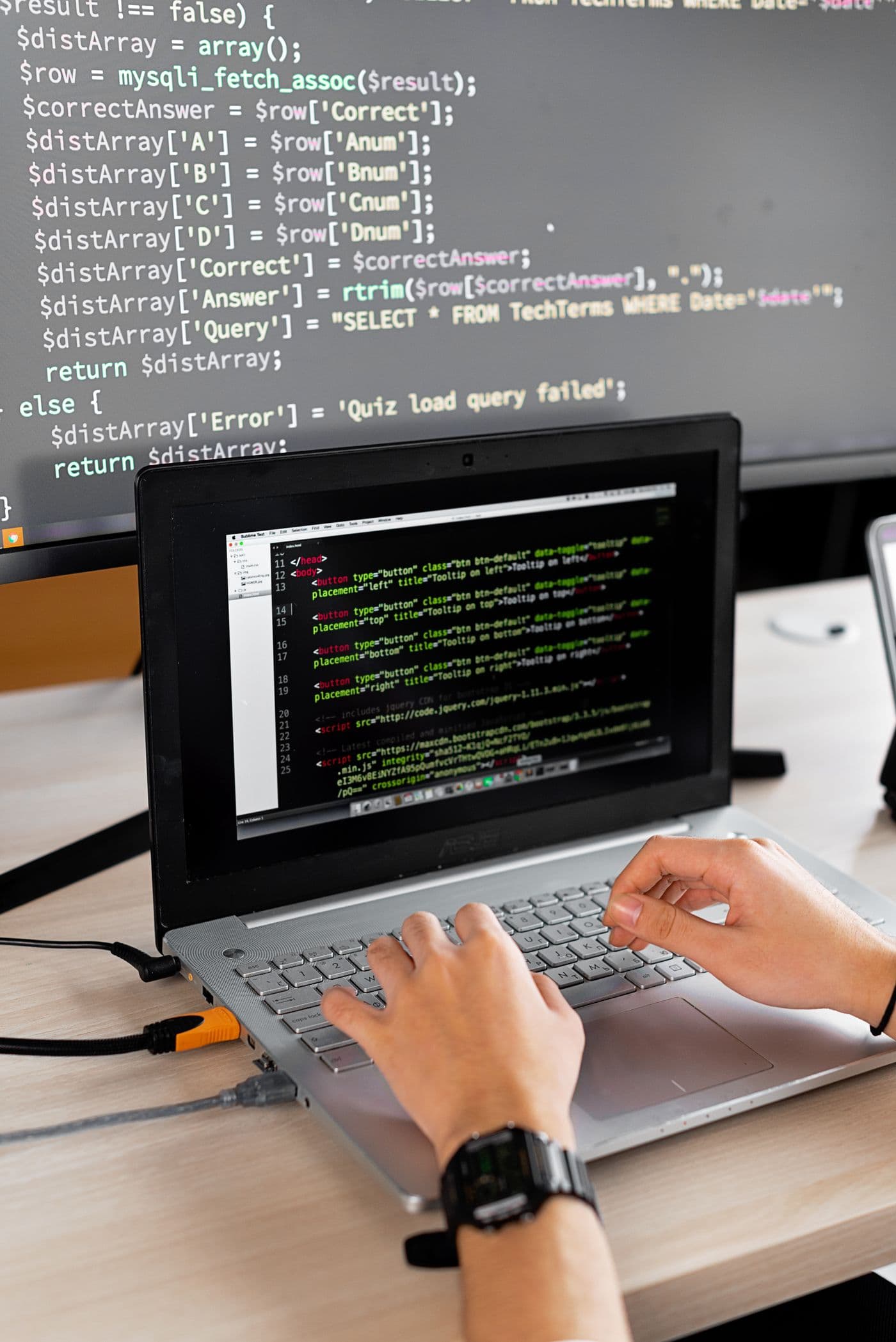
Recreate the real setup
Use the display arrangement and meeting application you intend to use. Open the editor or portfolio you will present and choose the actual sharing mode, whether an application window or an entire screen.
Join a practice call from a second device or ask a friend to observe. Inspect the receiving view instead of assuming that your local preview proves what is being transmitted.
const response = await prepareAnswer(question);if (context.isRelevant) explainTradeoff();return conciseResponse;Start with failure handling, add an observable rollback path, then release behind a flag.
Check transitions as well as the starting view
Switch files, open a terminal, and move between the windows you expect to use. Confirm that the important content stays readable and that unrelated notifications do not interrupt the presentation.
Check MOG's visibility in that exact setup. Capture behavior can depend on the platform and configuration, so verify the audience view before relying on it.
Test what the other device receives, not just what your own screen displays.
Make recovery simple
Know how to stop sharing, select the correct window again, and resume. Keep the relevant project open so a brief interruption does not turn into a search through folders.
Finish the rehearsal by checking audio and closing the practice session. The purpose is to make ordinary controls familiar enough that they need little attention during the interview.
More from the MOG journal

Getting started
Before your next interview, get MOG ready
A calm preparation routine for audio, screen sharing, context, and a short practice question.
Read article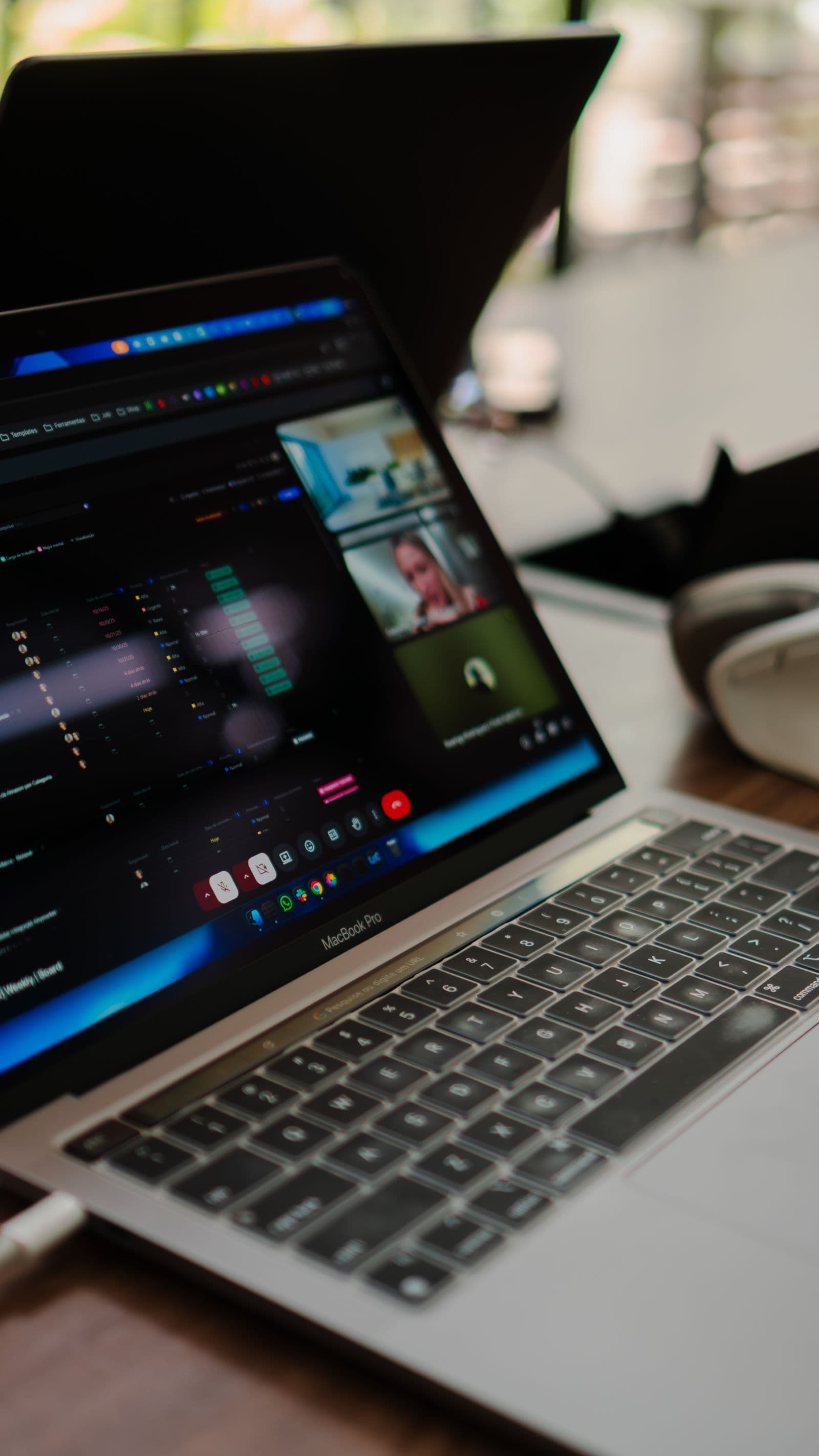
Inside MOG
The interviewer sees you, not MOG
How MOG keeps real-time interview assistance outside the screen you share.
Read article
Privacy and control
You decide when MOG listens
The controls that make private interview assistance understandable before, during, and after a call.
Read article
After the interview
Turn a difficult interview into useful practice
Review the questions, identify one gap, and build a focused practice session from what happened.
Read article
Interview strategy
When the question takes an unexpected turn
A practical way to recover context, structure your thinking, and answer before the moment passes.
Read article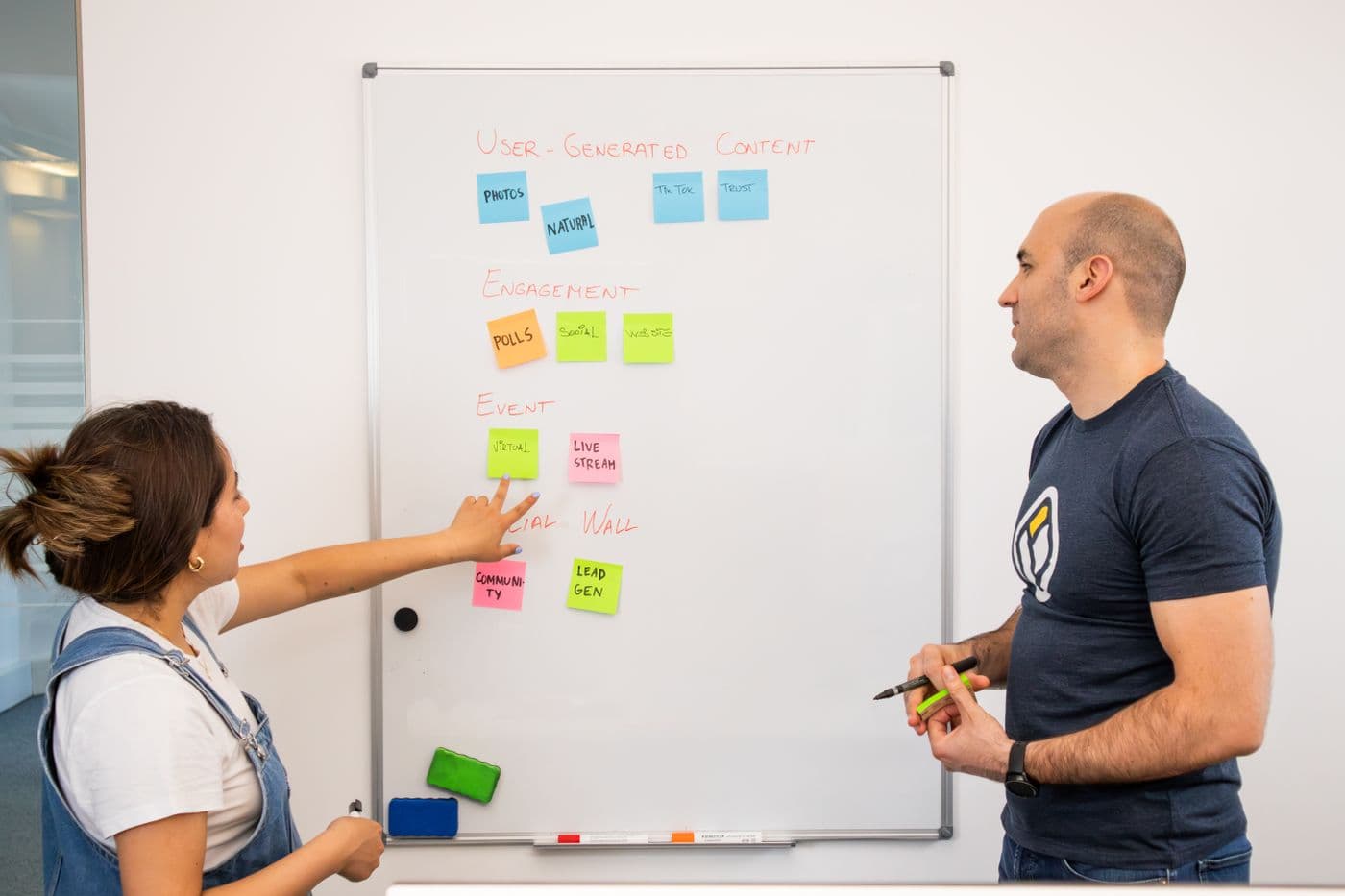
Interview strategy
Tell the project story only you can tell
Explain your contribution with a decision, evidence, and an honest account of the outcome.
Read article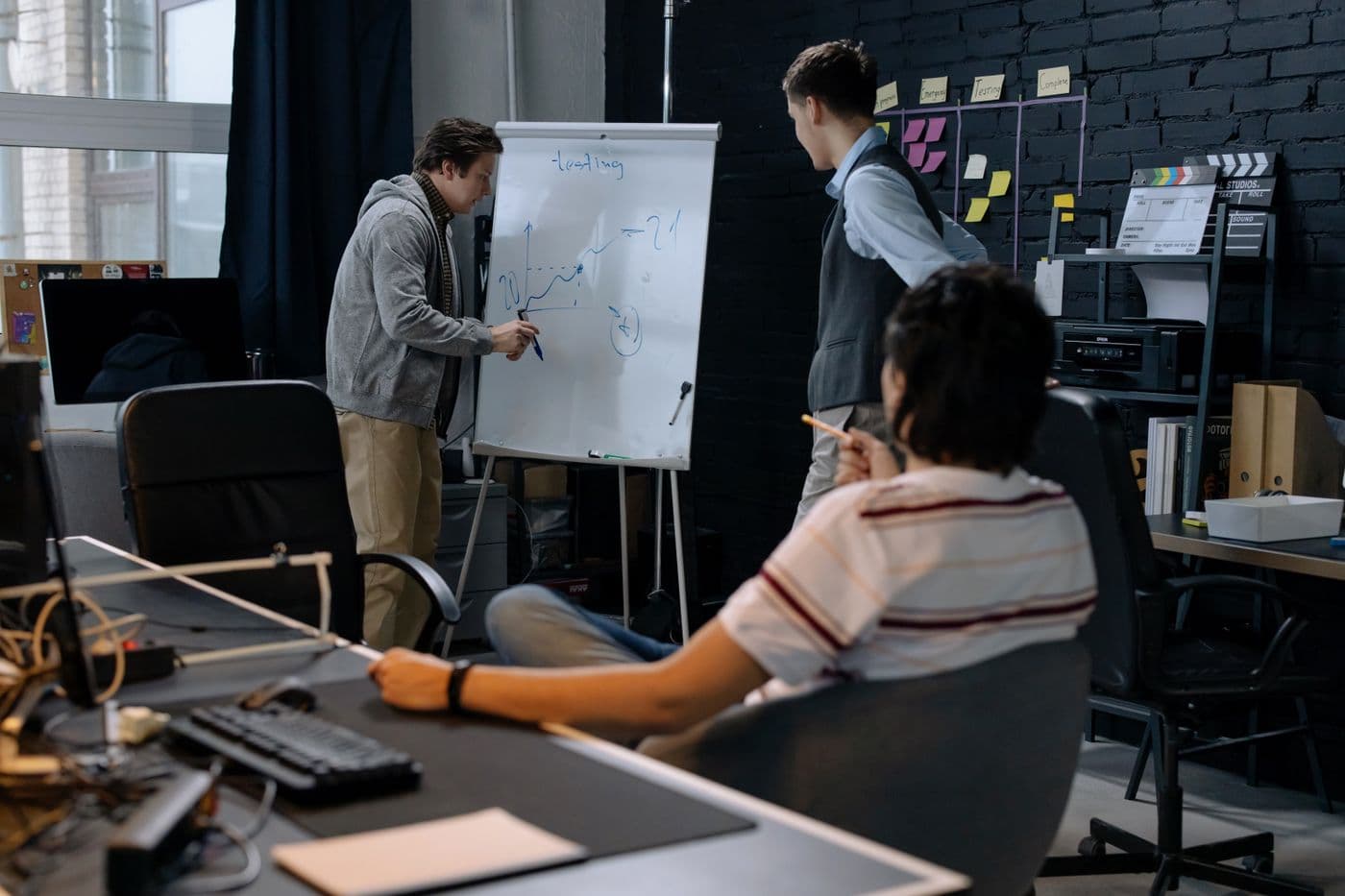
Technical interviews
Give your system design answer a backbone
Turn an open-ended architecture prompt into requirements, a first design, and explicit trade-offs.
Read article
Panel interviews
Keep the thread when the whole panel joins in
Handle changing speakers and layered follow-ups without losing the question you are answering.
Read article
Technical interviews
Debug out loud without guessing wildly
Make your reasoning visible through observations, hypotheses, and a small next experiment.
Read article